Know what you share. Choose what comes next.
Meeting someone new comes with choices. Here is what each control in CruiseCtrl does, what other people can see, and where to change it. This is an overview; the Privacy Policy is the full legal detail.
Nearby, never pinpointed.
Other members see how far away you are and a rough area on the map. You choose how coarse that area is, and you can stay off Discover and the map entirely while you look around.
Your discoverability
- What it does
- You appear in Discover while you’re checked in. You choose what you’re in the mood for, for how long, and who can see you.
- What others see
- Members in your chosen audience see your profile card and what you’re up for while your check-in is live.
- How to change it
- In the app: You → Visibility. End a check-in at any time, or turn on “Browse privately” to stay off Discover and the map while you look around.
- Good to know
- A check-in ends on its own at the time you chose; the server enforces it. People you already chat with can still message you when you browse privately.
Location visibility
- What it does
- Your location is used to show who is nearby and how far away they are.
- What others see
- Only an approximate area, never your exact position. Positions are snapped to a grid and offset by a fixed amount, so repeated looks can’t narrow it down.
- How to change it
- You → Visibility → Approximate location: about 100 m, about 500 m (the default) or area only, about 2 km.
- Good to know
- You can decline location access on your device; nearby results then rely on the location you last shared.
Private media
- What it does
- Photos and videos in your private gallery stay separate from your public profile.
- What others see
- Only the people you grant access to, and only what you share with them.
- How to change it
- You → Private media: see who has access to each item and revoke access at any time.
- Good to know
- Public profile photos go through our moderation checks before other members see them.
Blocking and reporting
- What it does
- Blocking stops contact in both directions straight away. Reporting sends what happened to our team for review.
- What others see
- Once blocked, neither of you appears in the other’s Discover, plans or chats.
- How to change it
- From a profile or a chat: Report or block. You → Settings → Blocked profiles to review or undo a block.
- Good to know
- Reporting someone also blocks them. Reports and the messages they refer to are kept for review for a limited time, as the Privacy Policy explains.
Safe Meet
- What it does
- Before you head out, set a check-in with someone you trust: where you’re meeting, when it starts and when you expect to be back.
- What others see
- Your contact sees your name, the venue, the start and check-in times, and who you’re meeting only if you choose to share it. Never your messages.
- How to change it
- You → Safe Meet. Tap “I’m back” when you are, or add 30 minutes.
- Good to know
- If you don’t check in, your contact can reach you; if you trigger an alarm, they’re notified with your approximate location.
Your account data
- What it does
- Export what CruiseCtrl holds about you, or close your account.
- What others see
- Nothing; this is between you and us.
- How to change it
- You → Settings → Privacy & data: “Export my data” or “Delete my account”.
- Good to know
- Deleting removes your profile, photos, favourites and conversations. Some safety records are kept where the law requires, as the Privacy Policy explains. Age-verification selfies are deleted once a decision is made.
Someone knows your plan.
Set a check-in before you head out. If all is well, tap “I’m back” and it ends. Running late? Add 30 minutes. Your contact is only brought in if you don’t check in or you raise an alarm.
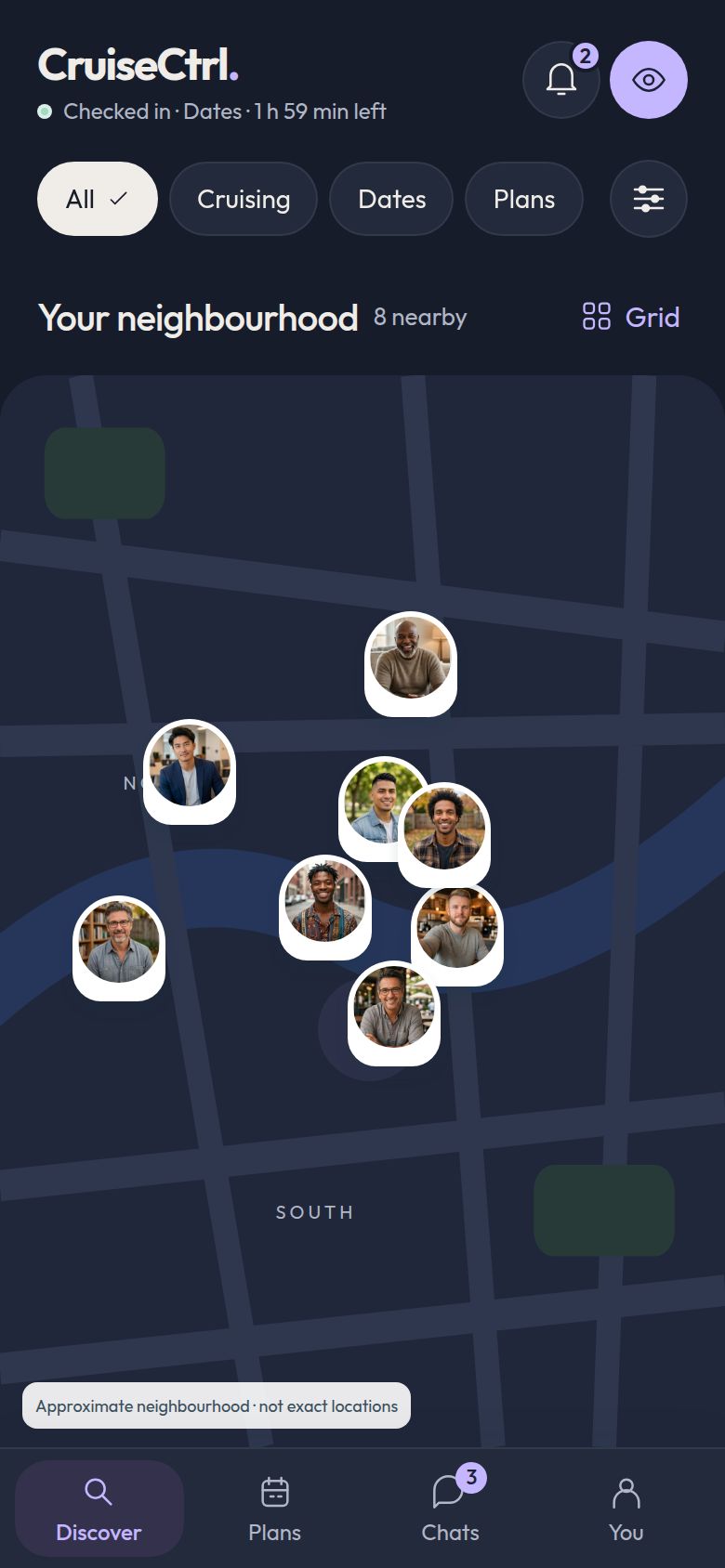
Areas, not addresses.
Portraits sit in approximate areas, and the same person always appears in the same rough spot, so moving the map around can’t triangulate anyone. Your own position is never shown to other members.
Questions about any of this? Contact us or read the Privacy Policy.